 Auditius Free audio editor and multitrack studio in your browser
Cut and join audio online
To cut audio, open the file, drag to select a part and delete it, or keep only the selection with Trim. To join audio files, add the next file to the end with File ▸ Open Append… or paste it exactly where you want it. Everything happens in your browser and nothing is uploaded.
- Free
- No install, no account
- Files never leave your computer
- English and Spanish
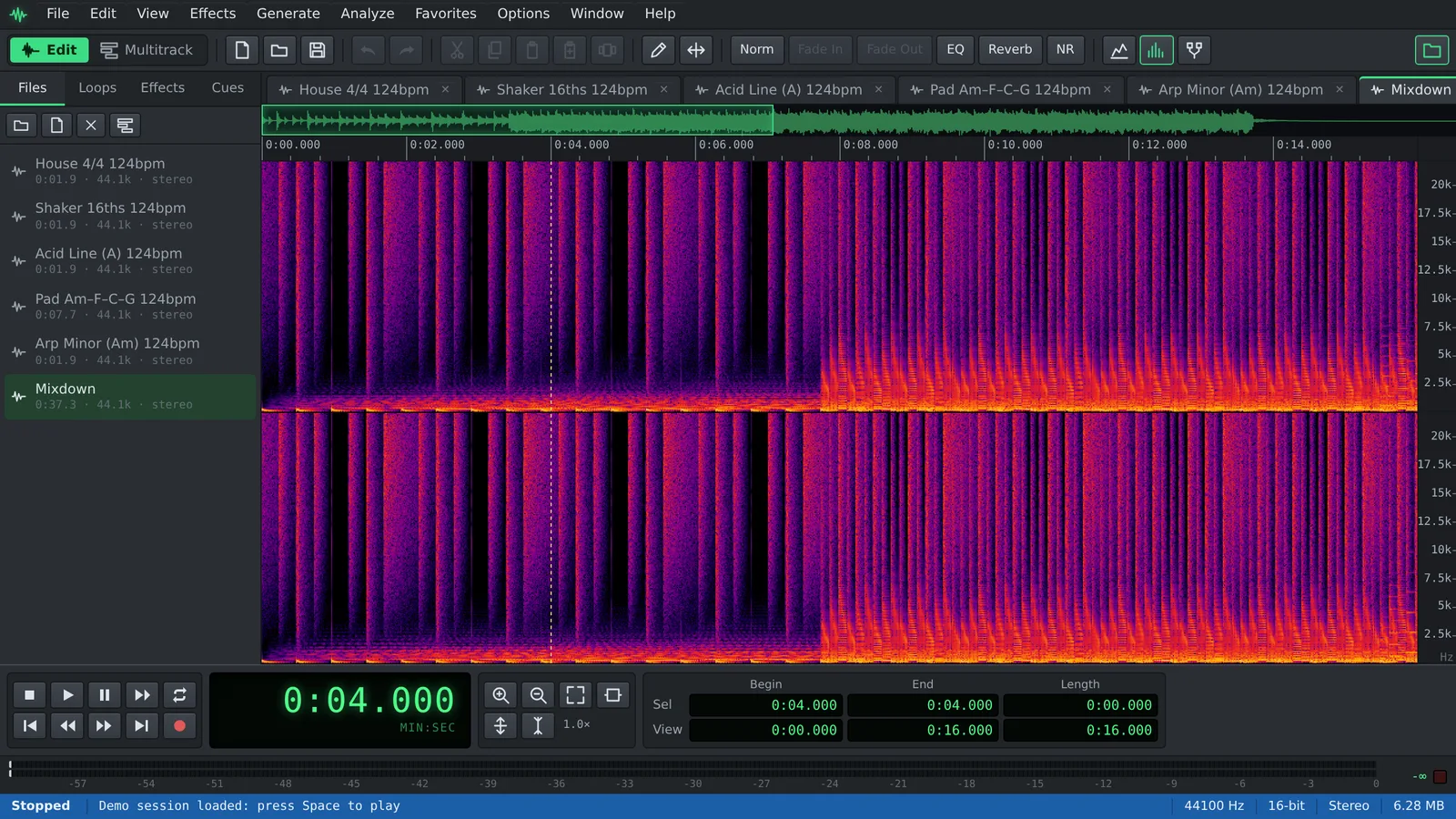
How to cut audio
Selections work like text in a word processor: select, then delete, cut, copy or paste.
- Click Open a file to cut, or use File ▸ Open… (Ctrl+O).
- Drag across the waveform to select a section. Drag its edges to adjust it, Shift+click to extend it and press Space to listen.
- To remove the selection, use Edit ▸ Delete Selection (Del). To keep only the selection and drop everything else, use Edit ▸ Trim (Ctrl+T).
- To move a part, take it out with Edit ▸ Cut (Ctrl+X), click where it should go and use Edit ▸ Paste (Ctrl+V).
- Save the result with File ▸ Save As…, or export only the selected part with File ▸ Save Selection…
How to join audio files
Files can have different formats and sample rates: Auditius converts what you add to match the file you are editing.
- Open the first file.
- Choose File ▸ Open Append… and pick the next file. It is added to the end. You can pick several files at once, and they are appended in order.
- To place audio somewhere in the middle instead, open it as a separate file, select it with Edit ▸ Select Entire Wave (Ctrl+A), copy it with Edit ▸ Copy (Ctrl+C), go back to the first file from the Window menu, click the insertion point and paste.
- Listen to each join. If one clicks or jumps in level, select a few milliseconds around it and smooth it with Effects ▸ Amplitude ▸ Fade Out… on one side and a fade in on the other.
- Save the joined file with File ▸ Save As… as WAV, FLAC, MP3 or Ogg Vorbis.
Precise cuts without clicks
A few tools make edits inaudible.
- Zoom in with View ▸ Zoom In (=) to see exactly where words and beats start.
- Edit ▸ Adjust Selection to Zero Crossings (Shift+Z) moves the selection edges to points where the waveform crosses zero, which avoids clicks at the cut.
- Mark cut points while you listen: press F8 to drop a cue at the cursor, or with a selection to create a range cue.
- Edit ▸ Mix Paste (Ctrl+Shift+V) layers the clipboard over the existing audio instead of inserting it, for example a sound effect under a voice.
- Edit ▸ Edit Channel ▸ Left Channel or Right Channel limits edits to one side of a stereo file.
- Made a mistake? Ctrl+Z undoes the last edit, and Ctrl+Y redoes it.
Other ways to rearrange and join
Cue playlist: mark the parts you want to keep as range cues, add them to the playlist in the Cues tab of the Organizer, set how often each repeats and use Render Playlist to New File to stitch them together in that order. The original file stays as it was.
Multitrack: for crossfades between songs or a voice over music, send each file to the Multitrack view with Edit ▸ Insert in Multitrack (Ctrl+M), turn on Options ▸ Automatic Crossfades, overlap the blocks and export the result with File ▸ Export Mixdown…
Frequently asked questions
Does cutting an MP3 lower its quality?
Auditius decodes the file and encodes it again when you save, so an MP3 saved as MP3 goes through one more encoding pass. Use a high bitrate such as 256 or 320 kbps, or save as WAV or FLAC to avoid any further loss.
Can I join files in different formats?
Yes. You can open an MP3 and append a WAV or FLAC file to it. The added audio is converted to the sample rate and channels of the first file, and you choose the output format when you save.
How do I split one recording into several files?
Select each part and save it with File ▸ Save Selection…, or use Edit ▸ Copy to New to turn the selection into a new file you can keep editing.
Can Auditius remove silences automatically?
No, it does not delete silence on its own. Select each pause and delete it, or use Effects ▸ Amplitude ▸ Noise Gate… to mute the gaps without changing the length.
Are my files uploaded?
No. Cutting, joining and exporting all happen in your browser, on your own device.
Audio tools
- Remove background noise from audio onlineRemove background noise from audio online for free: capture a noise profile, preview the result and export a clean file. Runs in your browser, with no uploads.
- Change the tempo of audio without changing the pitchChange the tempo of audio without changing the pitch: slow down or speed up songs, speech and loops in your browser. Free, nothing to install, and no uploads.
- Convert audio online: WAV, MP3, FLAC and OggConvert WAV to MP3 or FLAC online for free, or turn MP3, M4A and OGG into WAV. Choose bitrate or bit depth and export, all in your browser, with no uploads.
- Make loops and beats onlineMake loops online with royalty-free drum, bass and synth loops that follow your tempo. Repeat blocks, mix tracks and export WAV or MP3, free.