 Auditius Free audio editor and multitrack studio in your browser
Convert audio online: WAV, MP3, FLAC and Ogg
To convert an audio file, open it in Auditius, choose File ▸ Save As…, pick the format and quality, and save. The conversion runs inside your browser, so even long recordings are never uploaded, and you can trim or clean the audio before you export it.
- Free
- No install, no account
- Files never leave your computer
- English and Spanish
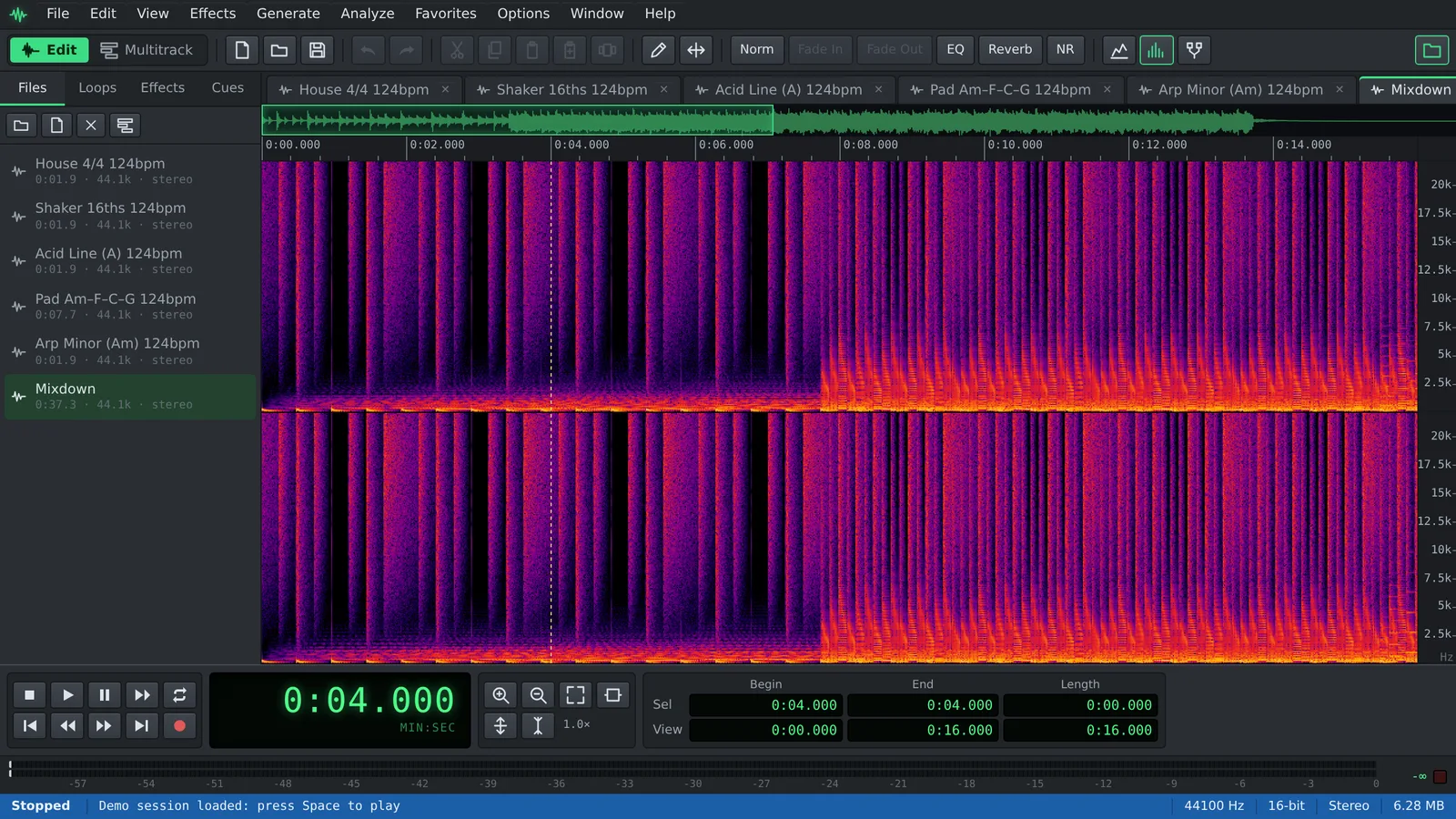
How to convert an audio file
This works the same way for WAV to MP3, MP3 to WAV, FLAC to MP3, M4A to WAV and any other combination below.
- Click Open a file to convert, or use File ▸ Open… (Ctrl+O). Most formats your browser can play will open: WAV, MP3, OGG, FLAC, M4A/AAC and WebM audio.
- Optional: change the sample rate, the number of channels or the bit depth with Edit ▸ Convert Sample Type… (F11), for example to turn stereo into mono or 48 kHz into 44.1 kHz.
- Choose File ▸ Save As… (Ctrl+Shift+S).
- In Format, pick Windows PCM (*.wav), FLAC (*.flac), MP3 (*.mp3) or Ogg Vorbis (*.ogg).
- Set the quality: Resolution for WAV, Resolution and Compression for FLAC, Bitrate for MP3 and Quality for Ogg Vorbis.
- Type a file name and click Save. Chrome and Edge ask where to save it; other browsers put it in your downloads.
Which format should you choose?
Pick the format by what happens to the file next.
- WAV: uncompressed and accepted everywhere, the safe choice for video editing and further processing. Use 16-bit for CD-quality delivery and 24-bit or 32-bit float to keep headroom for more editing.
- FLAC: lossless compression, the same audio as WAV in a smaller file. 16 or 24-bit, with compression levels from 0 to 8; higher levels give smaller files and never lower quality.
- MP3: the most compatible lossy format, for podcasts, sharing and older players. Constant bitrate from 64 to 320 kbps, or variable bitrate from V0 (best) to V9 (smallest).
- Ogg Vorbis: an open lossy format, popular for games and web players, with quality from -1 to 10.
Tips for better conversions
A conversion is also a good moment to fix the file.
- Converting MP3, M4A or Ogg to WAV or FLAC does not bring back detail lost in compression. It makes the file easier to edit, which is useful, but keep your lossless originals.
- Avoid converting from one lossy format to another more than once; every pass loses a little more.
- Fix the level while you are here with Effects ▸ Amplitude ▸ Normalize…, or trim silence at the start and end.
- Need only part of the file? Select it and use File ▸ Save Selection… to export just that part.
- WAV exports keep your cues, so markers you add with F8 travel with the file.
Converting many files at once
File ▸ Batch Process… runs a recorded script over open files or files from disk and exports every result in the format you choose. A script needs at least one step, so record one first with Edit ▸ Scripts ▸ Record Script, for example a Normalize step. The batch then levels and converts every file in one go.
Auditius exports audio only, as WAV, FLAC, MP3 or Ogg Vorbis. It does not write M4A/AAC or WebM, and it does not extract audio from video files.
Frequently asked questions
How do I convert WAV to MP3?
Open the WAV file, choose File ▸ Save As…, set Format to MP3 (*.mp3), pick a bitrate such as 192 or 320 kbps and click Save.
Can I convert M4A to MP3 or WAV?
Yes, as long as your browser can decode the M4A file, which current browsers usually can. Open it, then save it as MP3 or WAV.
Does converting WAV to FLAC lose quality?
No. FLAC is lossless: the decoded audio is identical to the WAV, at the bit depth you choose. Only the file size changes.
Is there a file size limit?
There is no upload limit because nothing is uploaded. The practical limit is your device’s memory, so very long recordings need a computer with enough RAM.
Are my files sent to a server?
No. Decoding and encoding, including MP3 and Ogg Vorbis, run in your browser on your own device.
Audio tools
- Remove background noise from audio onlineRemove background noise from audio online for free: capture a noise profile, preview the result and export a clean file. Runs in your browser, with no uploads.
- Change the tempo of audio without changing the pitchChange the tempo of audio without changing the pitch: slow down or speed up songs, speech and loops in your browser. Free, nothing to install, and no uploads.
- Cut and join audio onlineCut and join audio online: trim MP3 or WAV files, remove unwanted parts and merge several recordings into one. Free, in your browser, with no uploads.
- Make loops and beats onlineMake loops online with royalty-free drum, bass and synth loops that follow your tempo. Repeat blocks, mix tracks and export WAV or MP3, free.